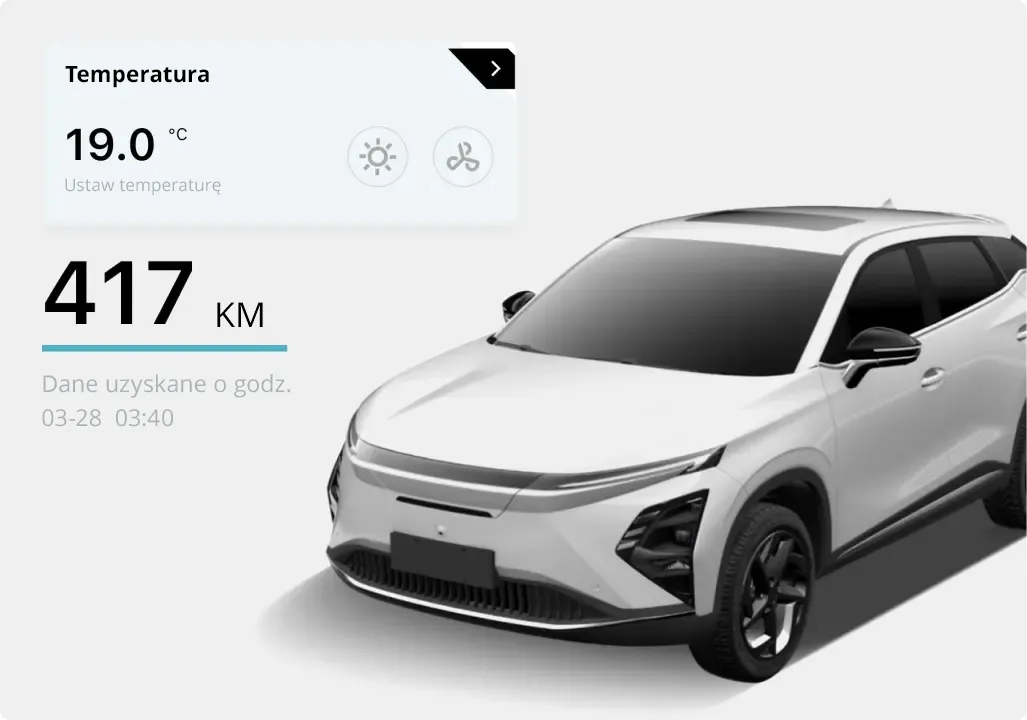
Check vehicle status
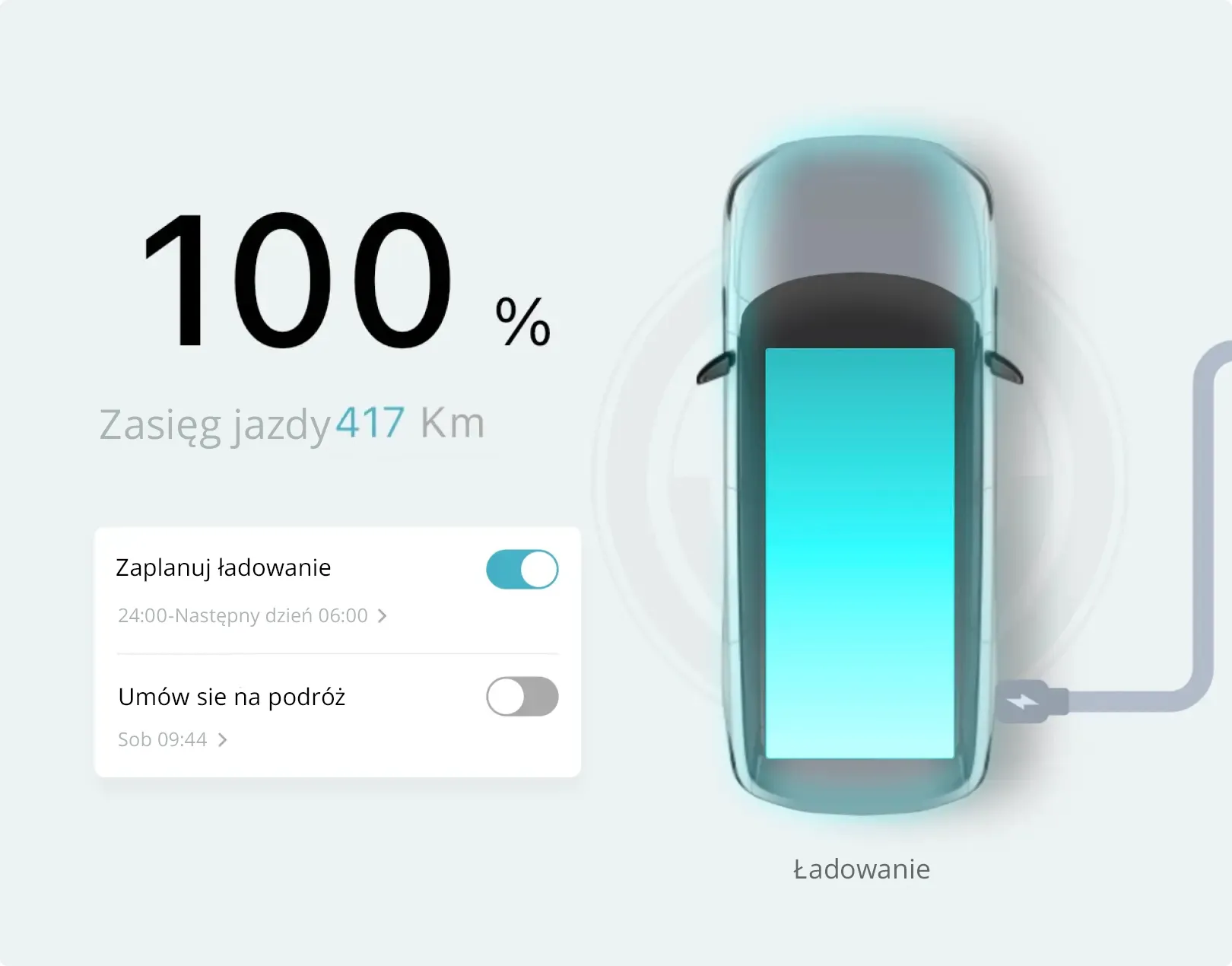
Easily check battery charge, range, and interior temperature.

The OMODA & JAECOO app is your essential companion, helping you get the most out of your OMODA & JAECOO vehicles.
Easily check battery charge, range, and interior temperature.
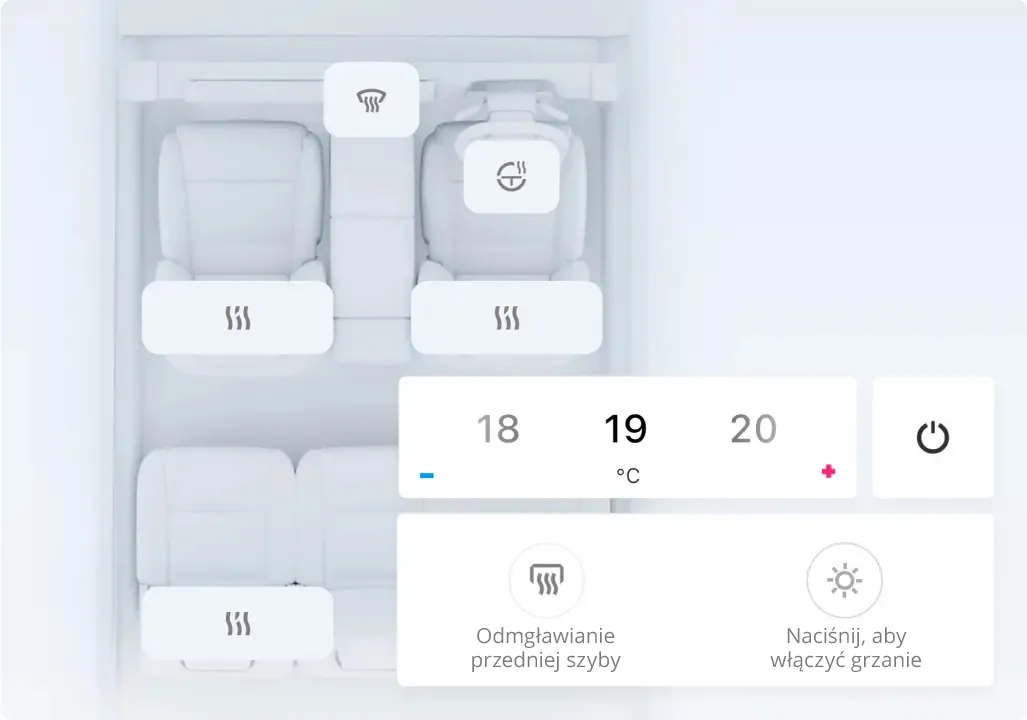
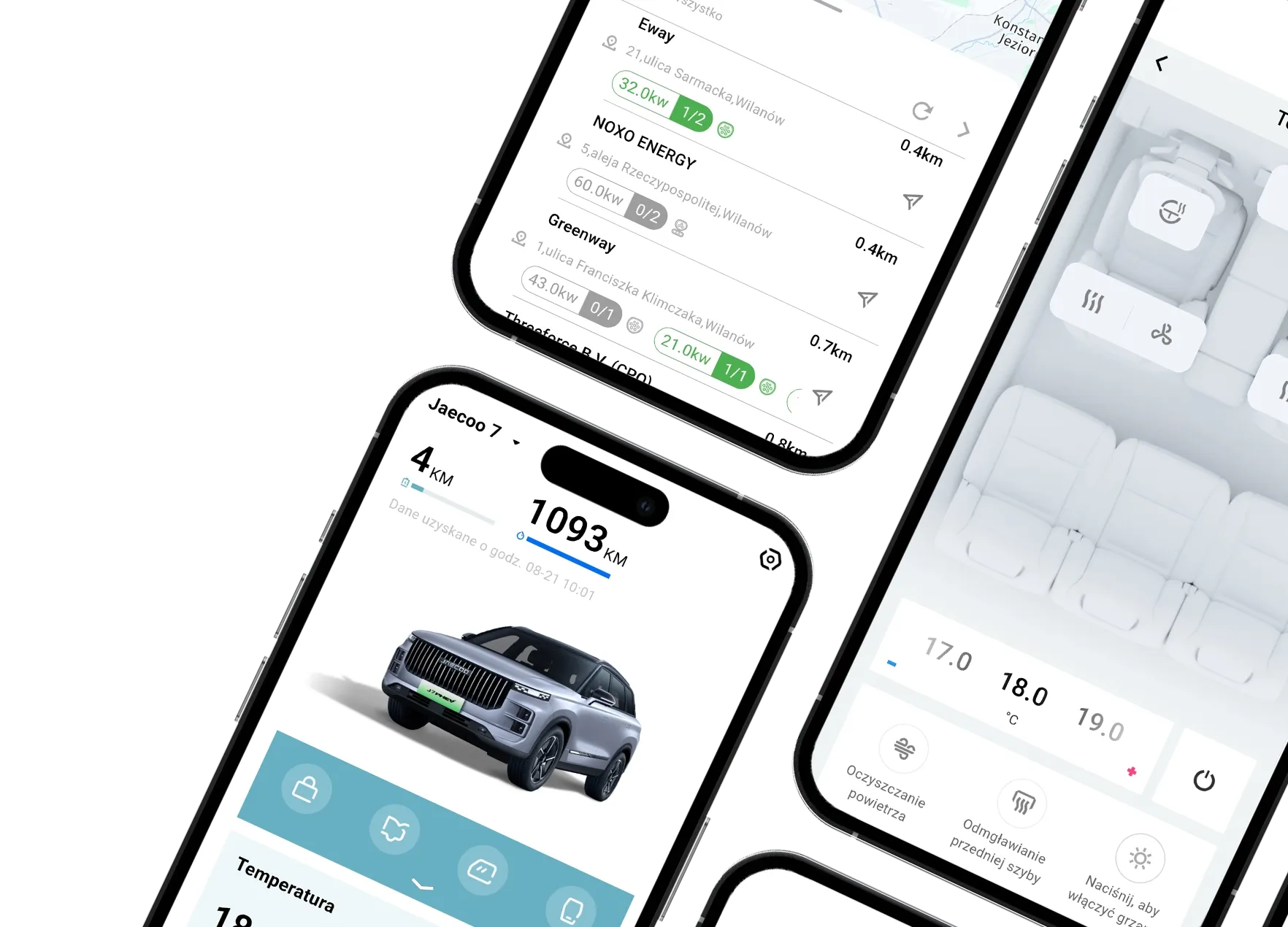
Set the temperature and remotely activate the heated seats, heated steering wheel, and windshield defroster and defroster.
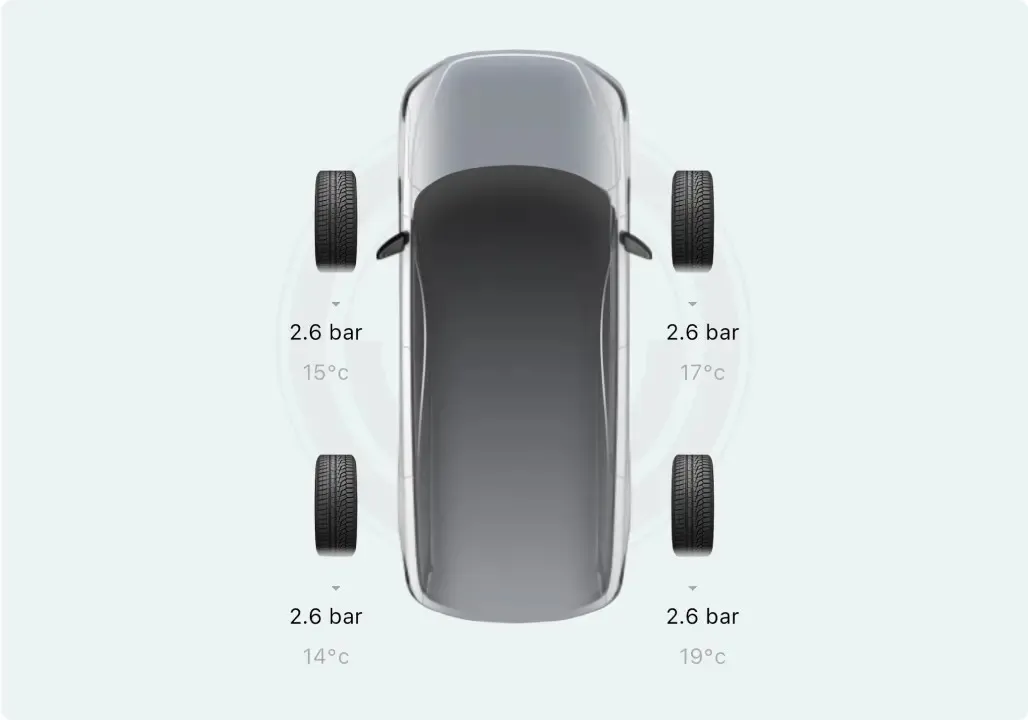
Check the pressure in all four tires before setting off.
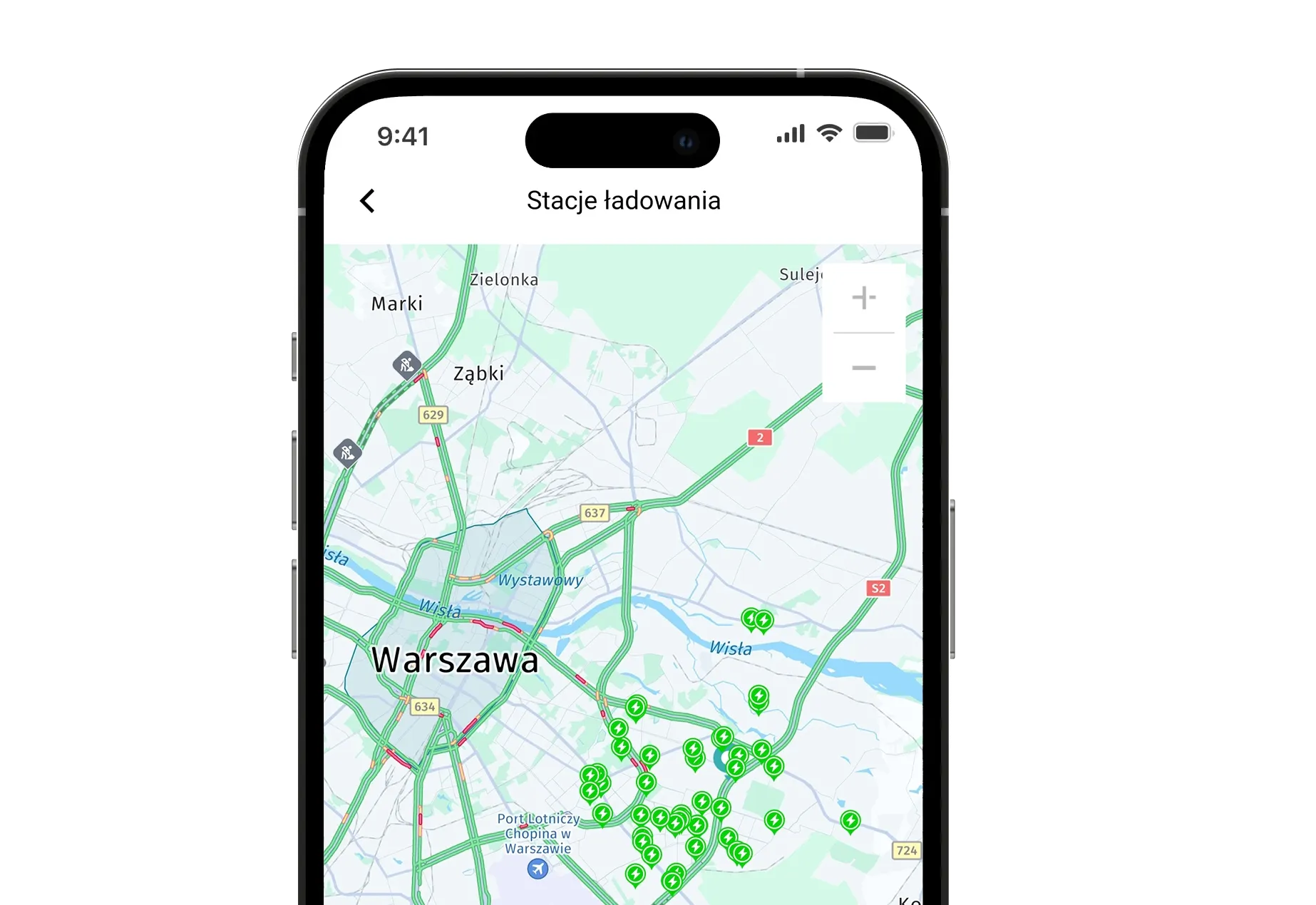
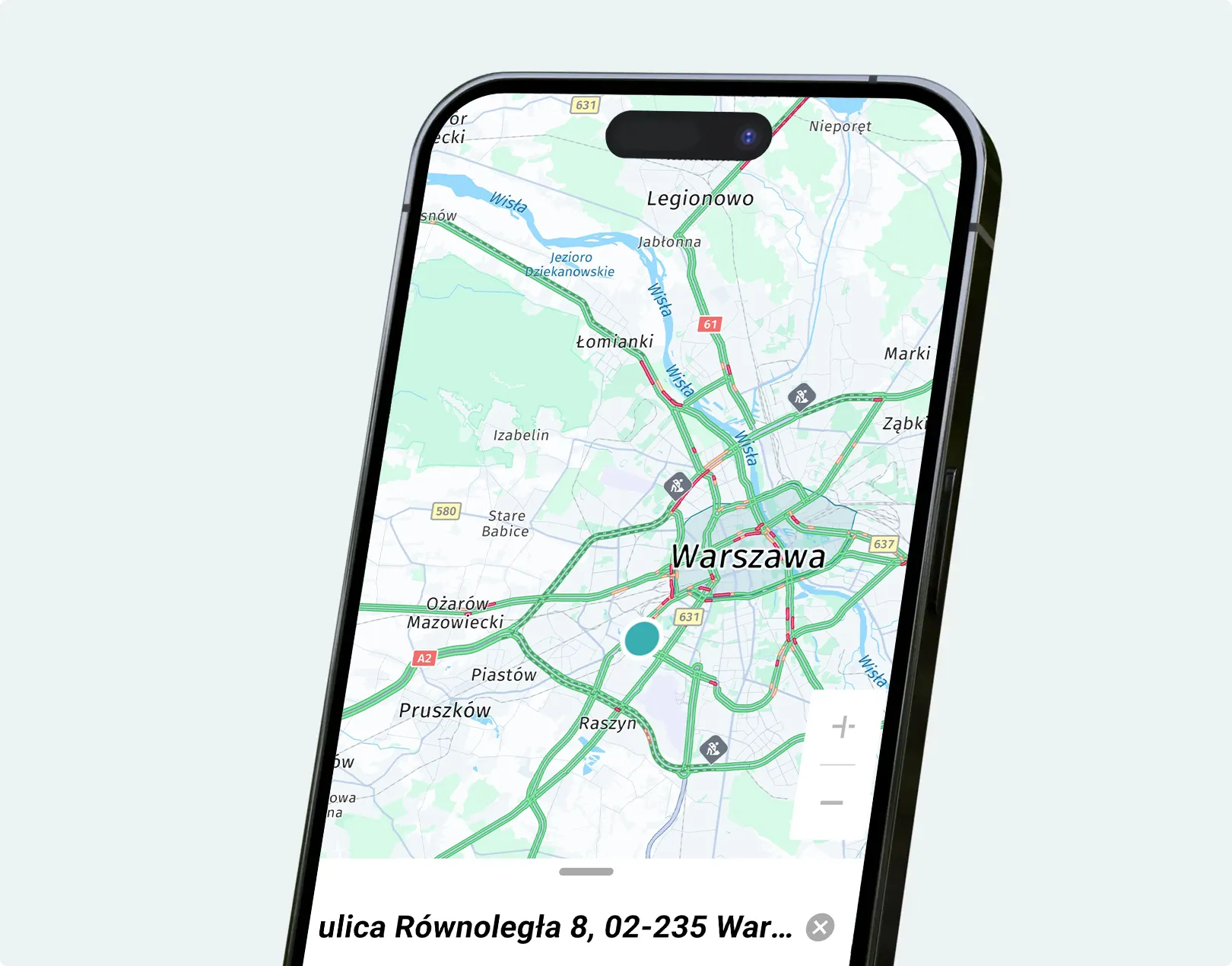
Use the QR code below to install the app and unlock features like remote start, climate control, vehicle health checks, and more.


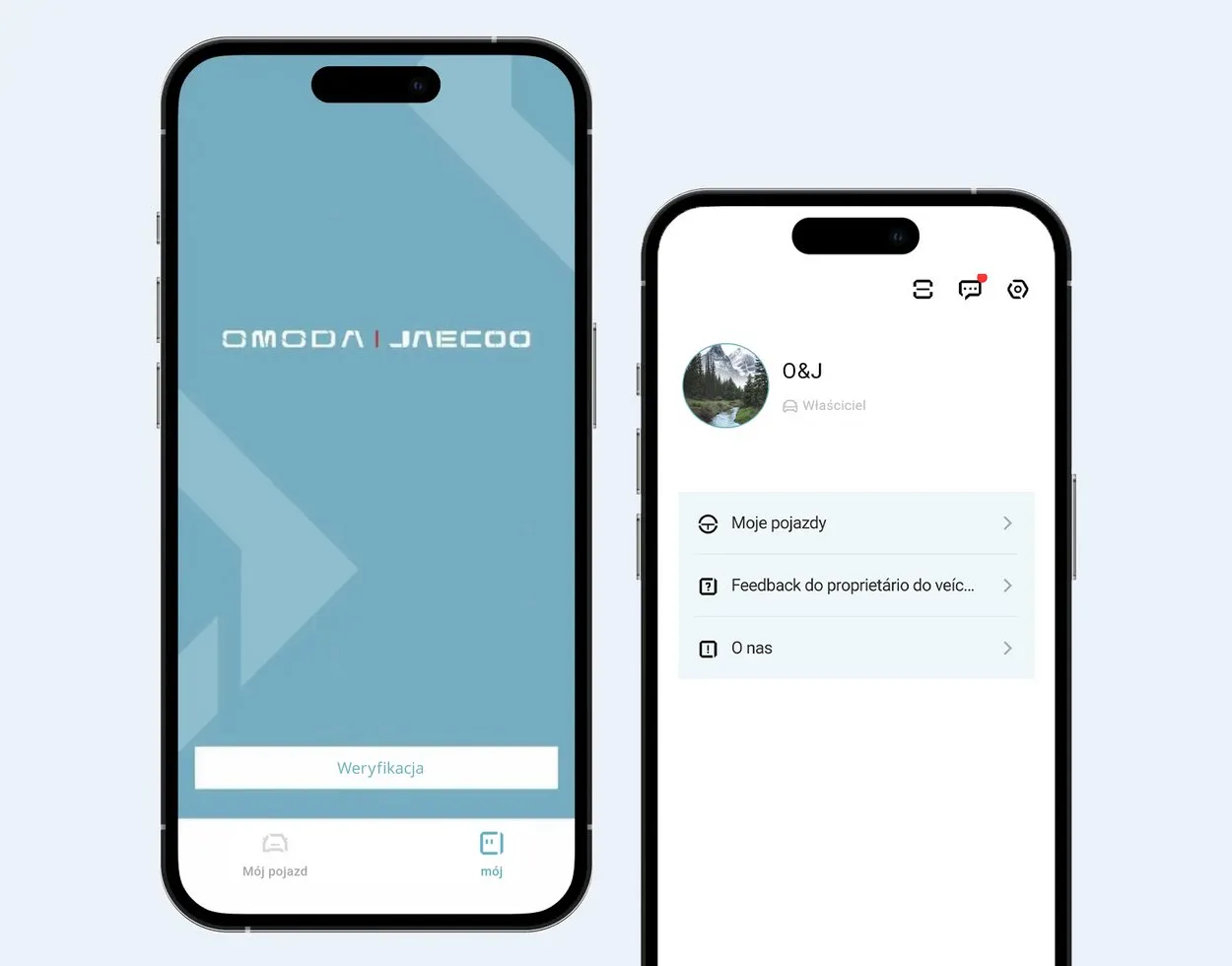
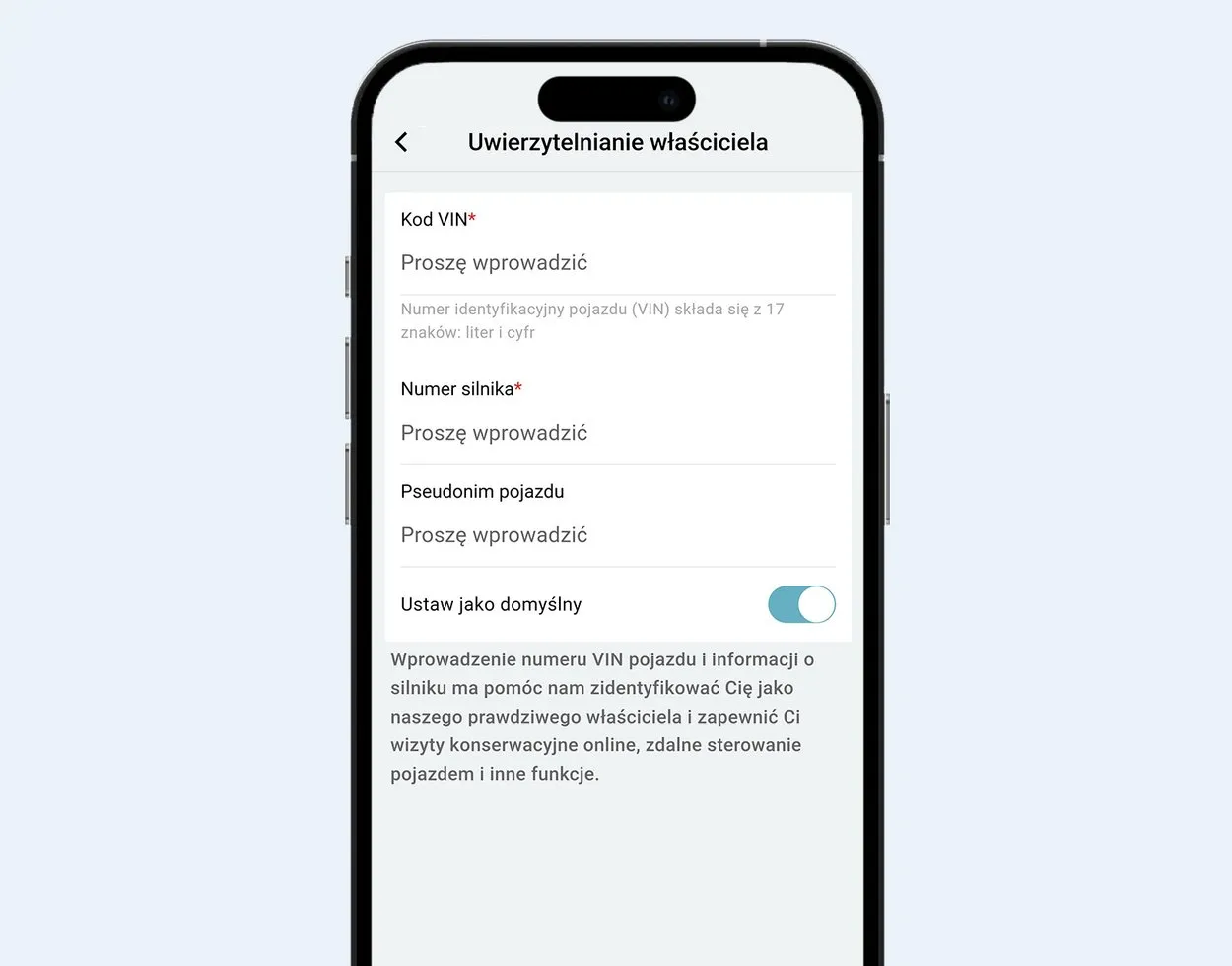
1. How do I activate telematics services in my vehicle?
2. What devices can I use the telematics service on?
Users can operate telematics functions using the vehicle's screen or connect to the vehicle using a smartphone app to remotely control vehicle functions, check vehicle status, and access other services.
3. What specific features are included in a telematics service?
Telematics services offer a variety of features, including:
4. Are telematics services available when using a vehicle outside the European Union?
5. Is a subscription required to use telematics services?
There is no need for one. Users can use telematics services after activating the system and pairing the vehicle. However, individual telematics features require prior acceptance of the relevant notifications and user agreements.
6. How to update your telematics system software?
7. Can I cancel my telematics service?
Cancelling my telematics service is possible. There are several ways to cancel it:
8. How long is the free use period for telematics services?
9. How much does a telematics subscription cost?
10. How can telematics services help in the event of vehicle theft?
Prevention: Use the virtual fence feature in advance – if the vehicle enters or exits a designated area, an alarm will be triggered and a notification will be sent.
Tracking: Users can contact after-sales service to enable the stolen vehicle tracking feature and monitor its location.
11. Which mobile network provides data services? Can I choose another operator?
Provision of data services: The vehicle uses a VDF SIM card to provide data services within the European Union, automatically selecting a local operator with a roaming agreement, depending on the country and region in which it is located.
Selection of other network operators: The TBOX system prioritizes the local operator with the strongest signal.
12. How does the telematics system sync with my mobile phone to provide real-time vehicle information?
The app can automatically sync real-time vehicle information after activating the car in the app.
13. Are special services available for emergencies, such as medical assistance?
The vehicle is equipped with an eCall function, which allows for automatic initiation of an emergency call in the event of an accident, or manual initiation of an emergency call by holding the SOS button on the dome light for approximately 3 seconds when assistance is needed. Emergency services are provided by the local Emergency Response Center (EPR).
14. Does the telematics service support shared access between family members?
Yes, it does.
The basic functions of the CarConnect service can be shared with family members or other people.
Number of people who can be authorized: 10.
Features that can be shared include checking vehicle status, using the vehicle's remote control function, etc.
How to grant access?
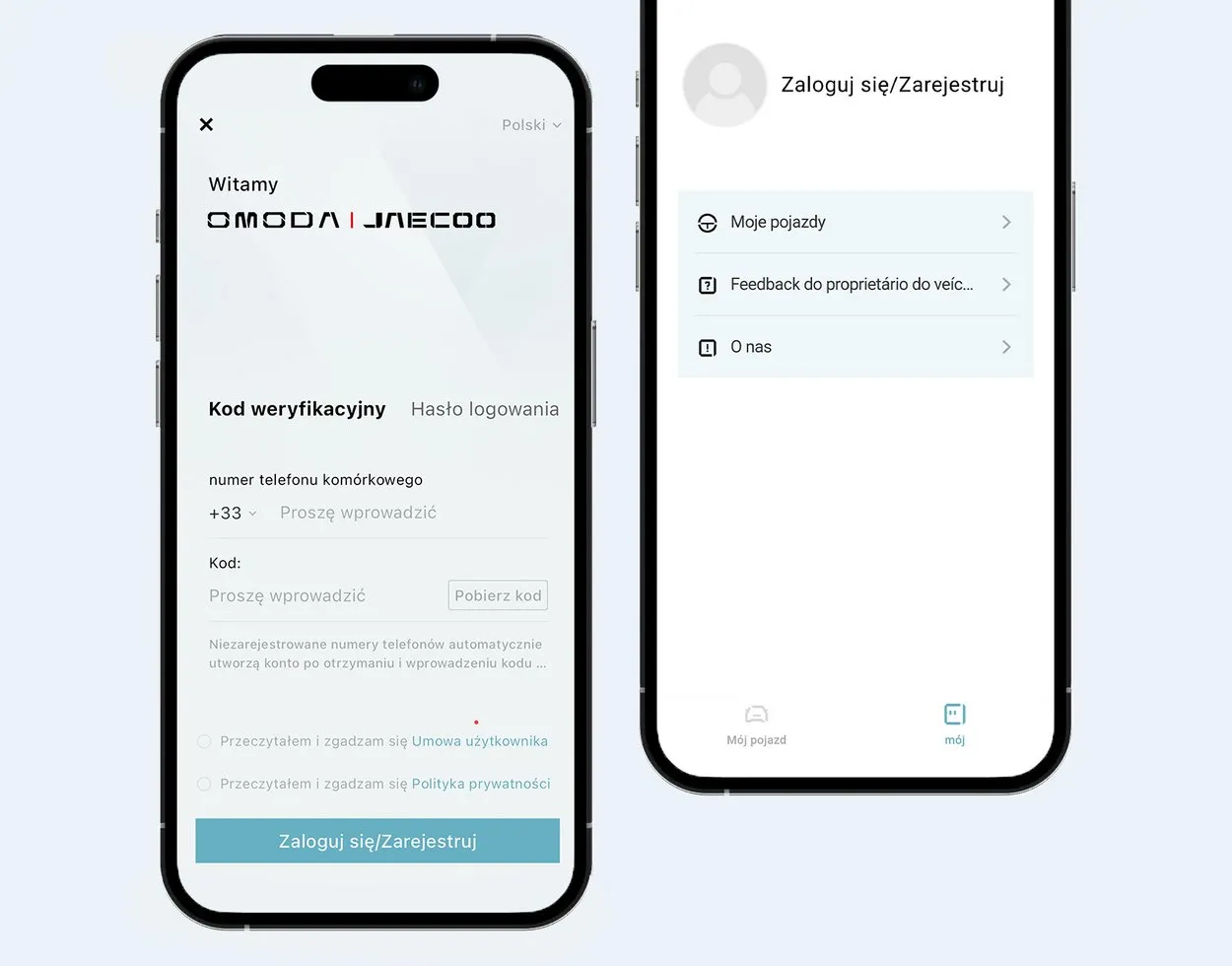
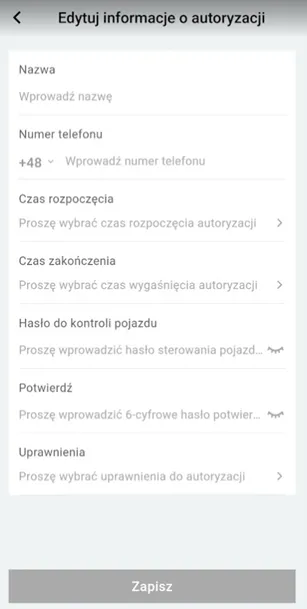
The vehicle is managed by the user who first linked the vehicle to the app. To grant access to another user, they must download the app and then create an account.
The administrator grants access by selecting App -> My Vehicle -> Settings -> Remote Access Overview -> Add.
In the menu that appears, configure access:
Username
Phone Number – the phone number associated with the account to which access is to be granted
Start and End Times – the time period for which access is to be granted
Vehicle Control Password – the password for remote access authorization
Permissions – the scope of granted permissions
15. Does the telematics service provide detailed tutorials or guides on how to use it?
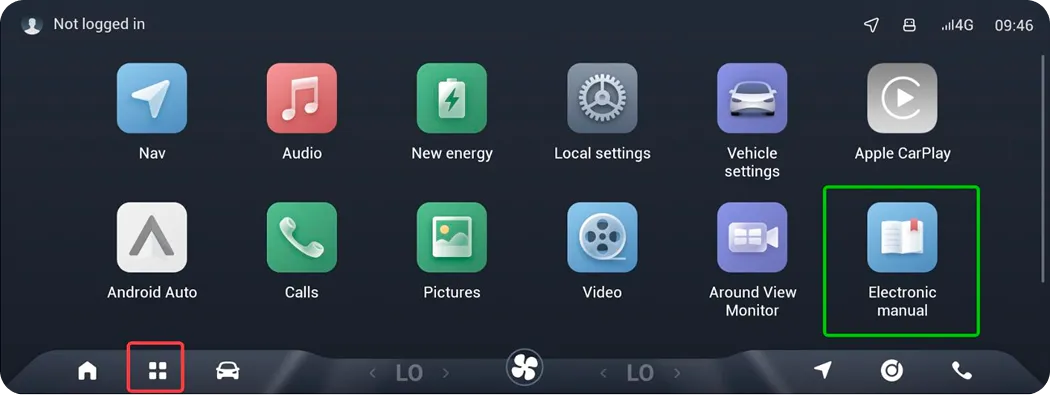
To access the vehicle's user manual: First, click the red box, then the green box—this is where the user manual is located.
16. Which models are OMODA Connect services available for?
17. Can I use internet-based multimedia applications via Wi-Fi hotspots?
Telematics services are temporarily unavailable for vehicles in the EU when they are operated outside the European Union.